We shipped a LiveKit plugin. One install, three lines of code, and any LiveKit agent gets a face.
pip install livekit-plugins-anam
The plugin works with any LLM you're already using: OpenAI Realtime, Gemini Live, Claude, Deepgram, ElevenLabs, Cartesia, or your own model. Anam handles only the visual layer. You keep everything else.
How it works
The architecture:
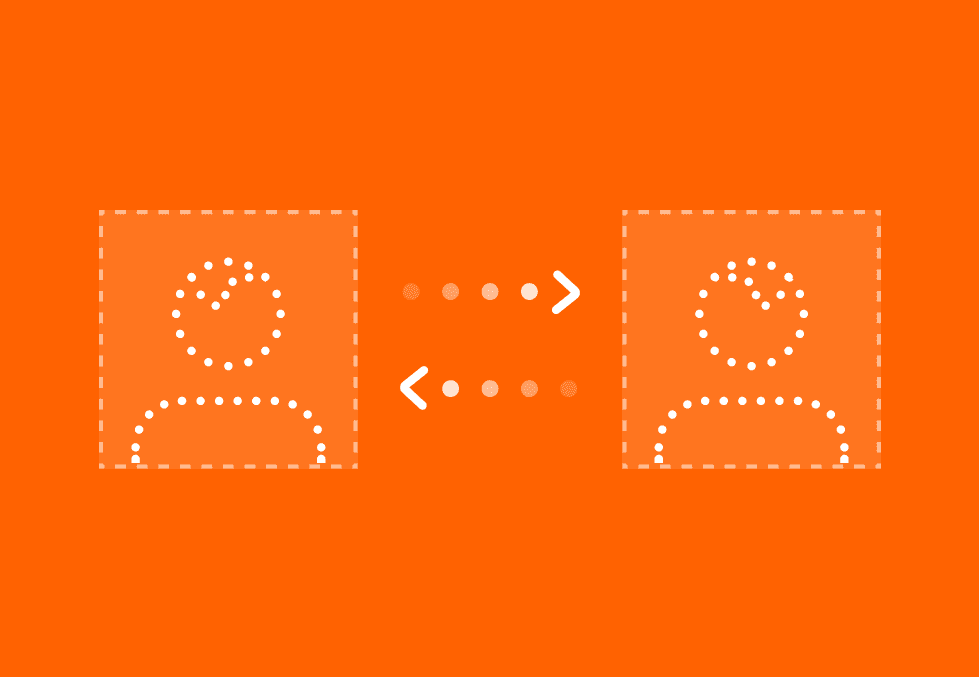
Anam sits at the end of the pipeline. It receives the text response from your LLM, generates speech and video in real time, and streams it back to the user through the LiveKit room. Your existing agent code doesn't change. You're adding a face, not rebuilding anything.
This is the same Custom LLM architecture we use across our integrations. The interactive avatar layer is decoupled from the intelligence layer. If you already have a working agent, you're not switching stacks.
Quick start
Here's a minimal working example with OpenAI Realtime:
import os
from livekit.agents import Agent, AgentSession, JobContext, WorkerOptions, cli
from livekit.plugins import openai, anam

async def entrypoint(ctx: JobContext):
    await ctx.connect()

    session = AgentSession(
        llm=openai.realtime.RealtimeModel(voice="alloy"),
    )

    avatar = anam.AvatarSession(
        persona_config=anam.PersonaConfig(
            name="Mia",
            avatarId="edf6fdcb-acab-44b8-b974-ded72665ee26",
        ),
        api_key=os.getenv("ANAM_API_KEY"),
    )

    await avatar.start(session, room=ctx.room)
    await session.start(
        agent=Agent(instructions="You are a helpful assistant."),
        room=ctx.room,
    )

    session.generate_reply(instructions="Say hello to the user")

if __name__ == "__main__":
    cli.run_app(WorkerOptions(entrypoint_fnc=entrypoint))
import os
from livekit.agents import Agent, AgentSession, JobContext, WorkerOptions, cli
from livekit.plugins import openai, anam
async def entrypoint(ctx: JobContext):
await ctx.connect()
session = AgentSession(
llm=openai.realtime.RealtimeModel(voice="alloy"),
)
avatar = anam.AvatarSession(
persona_config=anam.PersonaConfig(
name="Mia",
avatarId="edf6fdcb-acab-44b8-b974-ded72665ee26",
),
api_key=os.getenv("ANAM_API_KEY"),
)
await avatar.start(session, room=ctx.room)
await session.start(
agent=Agent(instructions="You are a helpful assistant."),
room=ctx.room,
)
session.generate_reply(instructions="Say hello to the user")
if __name__ == "__main__":
cli.run_app(WorkerOptions(entrypoint_fnc=entrypoint))import os
from livekit.agents import Agent, AgentSession, JobContext, WorkerOptions, cli
from livekit.plugins import openai, anam
async def entrypoint(ctx: JobContext):
await ctx.connect()
session = AgentSession(
llm=openai.realtime.RealtimeModel(voice="alloy"),
)
avatar = anam.AvatarSession(
persona_config=anam.PersonaConfig(
name="Mia",
avatarId="edf6fdcb-acab-44b8-b974-ded72665ee26",
),
api_key=os.getenv("ANAM_API_KEY"),
)
await avatar.start(session, room=ctx.room)
await session.start(
agent=Agent(instructions="You are a helpful assistant."),
room=ctx.room,
)
session.generate_reply(instructions="Say hello to the user")
if __name__ == "__main__":
cli.run_app(WorkerOptions(entrypoint_fnc=entrypoint))avatar.start() runs before session.start(). The avatar needs to be connected to the room before the agent starts generating responses. The avatarId here is one of our stock avatars — browse the full gallery or create your own in Anam Lab. Your ANAM_API_KEY comes from the Anam dashboard.
Using Gemini with vision
Gemini Live with screen share is where it gets more useful. The agent can see what the user is sharing and respond to it: onboarding flows, form assistance, technical support.
import os
from livekit.agents import Agent, AgentSession, JobContext, WorkerOptions, cli
from livekit.agents.voice import VoiceActivityVideoSampler, room_io
from livekit.plugins import anam, google

async def entrypoint(ctx: JobContext):
    await ctx.connect()

    llm = google.realtime.RealtimeModel(
        model="gemini-2.0-flash-exp",
        api_key=os.getenv("GEMINI_API_KEY"),
        voice="Aoede",
        instructions="You are a helpful assistant that can see the user's screen.",
    )

    avatar = anam.AvatarSession(
        persona_config=anam.PersonaConfig(
            name="Maya",
            avatarId=os.getenv("ANAM_AVATAR_ID"),
        ),
        api_key=os.getenv("ANAM_API_KEY"),
    )

    session = AgentSession(
        llm=llm,
        video_sampler=VoiceActivityVideoSampler(
            speaking_fps=0.2,
            silent_fps=0.1,
        ),
    )

    await avatar.start(session, room=ctx.room)
    await session.start(
        agent=Agent(instructions="Help the user with what you see on their screen."),
        room=ctx.room,
        room_input_options=room_io.RoomInputOptions(video_enabled=True),
    )

if __name__ == "__main__
import os
from livekit.agents import Agent, AgentSession, JobContext, WorkerOptions, cli
from livekit.agents.voice import VoiceActivityVideoSampler, room_io
from livekit.plugins import anam, google

async def entrypoint(ctx: JobContext):
    await ctx.connect()

    llm = google.realtime.RealtimeModel(
        model="gemini-2.0-flash-exp",
        api_key=os.getenv("GEMINI_API_KEY"),
        voice="Aoede",
        instructions="You are a helpful assistant that can see the user's screen.",
    )

    avatar = anam.AvatarSession(
        persona_config=anam.PersonaConfig(
            name="Maya",
            avatarId=os.getenv("ANAM_AVATAR_ID"),
        ),
        api_key=os.getenv("ANAM_API_KEY"),
    )

    session = AgentSession(
        llm=llm,
        video_sampler=VoiceActivityVideoSampler(
            speaking_fps=0.2,
            silent_fps=0.1,
        ),
    )

    await avatar.start(session, room=ctx.room)
    await session.start(
        agent=Agent(instructions="Help the user with what you see on their screen."),
        room=ctx.room,
        room_input_options=room_io.RoomInputOptions(video_enabled=True),
    )

if __name__ == "__main__
import os
from livekit.agents import Agent, AgentSession, JobContext, WorkerOptions, cli
from livekit.agents.voice import VoiceActivityVideoSampler, room_io
from livekit.plugins import anam, google

async def entrypoint(ctx: JobContext):
    await ctx.connect()

    llm = google.realtime.RealtimeModel(
        model="gemini-2.0-flash-exp",
        api_key=os.getenv("GEMINI_API_KEY"),
        voice="Aoede",
        instructions="You are a helpful assistant that can see the user's screen.",
    )

    avatar = anam.AvatarSession(
        persona_config=anam.PersonaConfig(
            name="Maya",
            avatarId=os.getenv("ANAM_AVATAR_ID"),
        ),
        api_key=os.getenv("ANAM_API_KEY"),
    )

    session = AgentSession(
        llm=llm,
        video_sampler=VoiceActivityVideoSampler(
            speaking_fps=0.2,
            silent_fps=0.1,
        ),
    )

    await avatar.start(session, room=ctx.room)
    await session.start(
        agent=Agent(instructions="Help the user with what you see on their screen."),
        room=ctx.room,
        room_input_options=room_io.RoomInputOptions(video_enabled=True),
    )

if __name__ == "__main__
The VoiceActivityVideoSampler controls how often Gemini gets a frame from the screen share: one per five seconds when speaking, one per ten when silent. Adjust based on how much context the task requires versus your API costs.
We built a full onboarding assistant demo using this setup: Gemini vision, screen share analysis, form filling. Check our cookbook recipe if you want to see how it fits together end to end with working code.
Where this is actually useful
The LiveKit combination works best where voice alone isn't enough — where users need to see something, or feel like they're talking to someone rather than dictating to a system.
The use cases we see most often: employee onboarding (agent guides new hires through forms while watching their screen), healthcare intake (patients filling out medical forms with a calm presence walking them through it), financial services onboarding (KYC, account opening), and technical support where the agent can see exactly what the user is looking at.
A few customers have told us the face matters more in these contexts than in simpler conversational flows. When someone is sharing sensitive information or being walked through a process they don't fully understand, the visual presence changes how they engage. One partner reported 70% of their users preferring video agents over voice agents alone in their onboarding flow. That's not a number to generalise from one data point, but it's consistent with what we hear across the board.
Getting started
The full documentation covers environment setup, all configuration options, and the complete API reference. There are also two cookbooks: getting started with LiveKit if you're building from scratch, and Gemini vision with screen share for the multimodal setup.
If you already have a LiveKit agent running, the integration is one install and a few lines. If you're starting from scratch, the quickstart gets you to a working avatar session in about ten minutes.