

Import ElevenLabs voices
The import process depends on whether the voice is public or cloned.Public Voice Library voices
If a voice appears in the public ElevenLabs Voice Library, copy its Voice ID and import it directly in the Anam Lab.Cloned voices
Anam must import cloned voices and add them to your account before you can use them in Lab.1
Create a share link in ElevenLabs
Open the cloned voice, select Voice sharing, and switch to the External & Voice Library tab. Enable External link sharing and copy the share link.For the most reliable import, set the link access to Anyone with the link.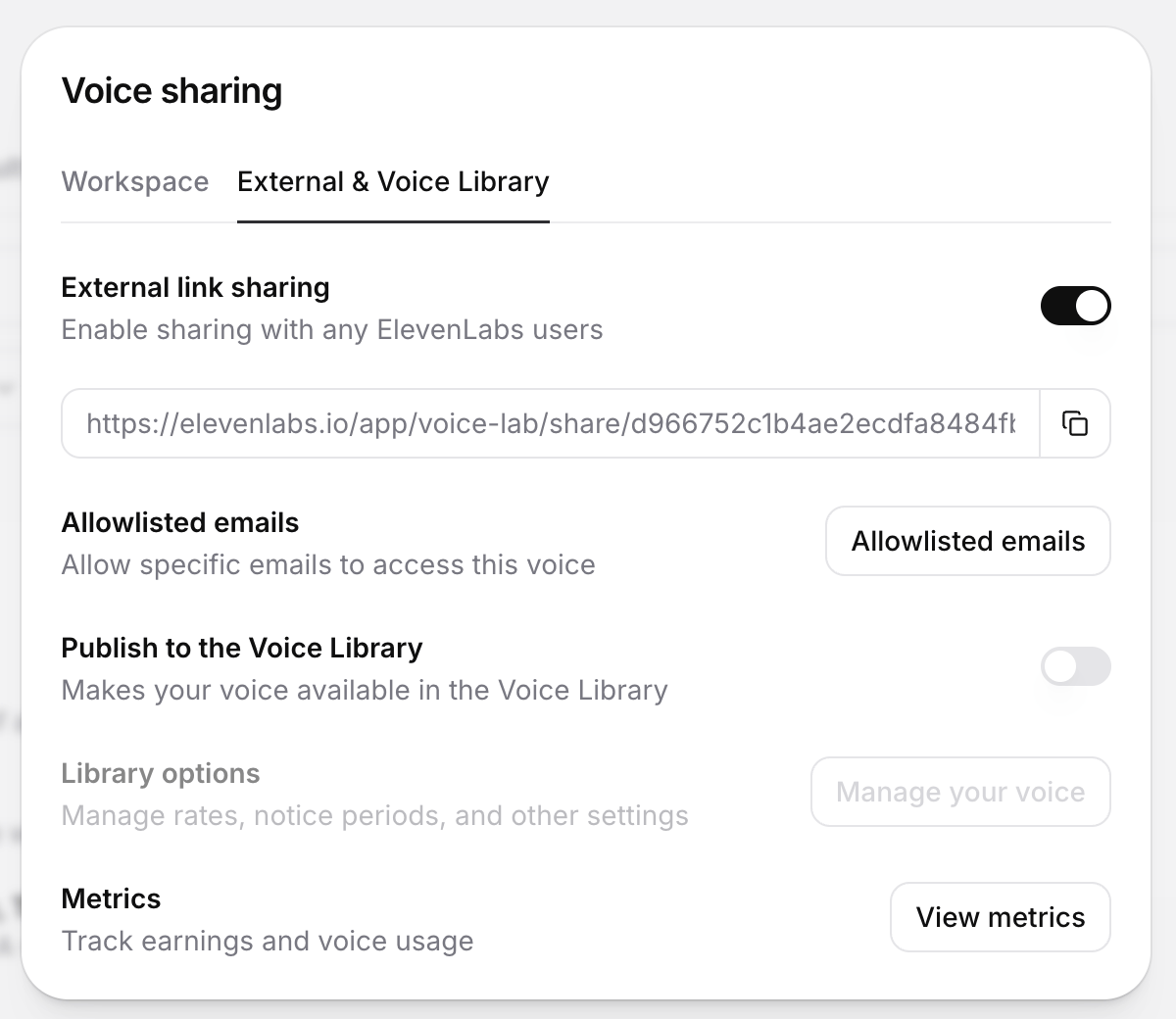
2
Send the share link to Anam Support
Email the share link to support@anam.ai. Anam will import the voice, add it to your account, and confirm when it is available.
Only the Professional Voice Clone voice type in ElevenLabs can be shared with external organisations.
Import Cartesia voices
Any localized or cloned Cartesia voice must be public before Anam can import it.1
Share the voice in Cartesia
Open the voice’s sharing settings and select Shared. Cartesia describes this setting as Anyone with the voice ID can use it.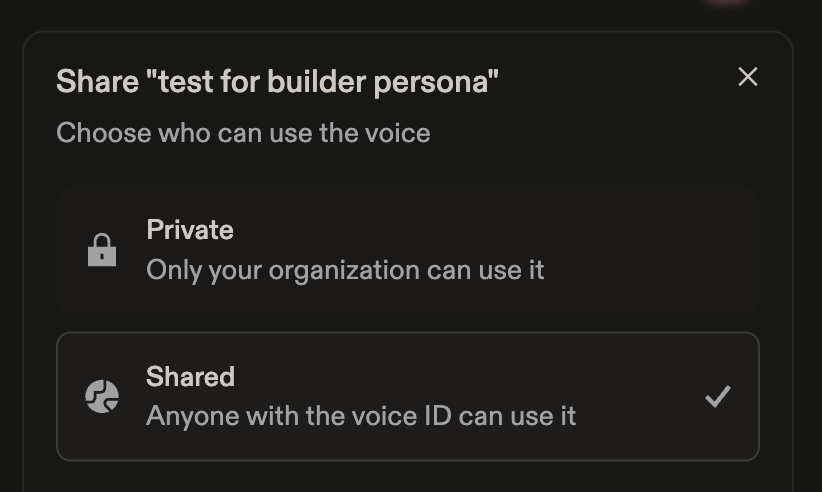
2
Import the voice in the Anam Lab
Copy the Cartesia Voice ID, then import the voice in the Anam Lab.
Next Steps
Avatar Gallery
Browse available avatars to pair with your voice
Persona Configuration
Learn more about configuring personas
Prompting Guide
Write effective system prompts for multilingual personas
Authentication
Understand session token creation