

Clone or upload a voice in Lab
Sign in to Anam Lab and open the persona you want to update. Your organization must have custom voice access enabled to clone or import a voice. If Lab reports an access error, contact Anam Support to check your organization’s access.1
Open the cloning screen
Select the Voice tab, then Start recording. This opens the cloning screen, which supports both recording and uploading audio.
2
Record or upload audio
Record a sample using your microphone, or select Upload audio file to use an existing recording. You do not need to record a new sample to reach the upload option.For microphone recording, read the displayed script for 10–15 seconds. The recorder stops automatically at 15 seconds. Review your sample before continuing.
3
Configure and preview the voice
Select Continue, enter a Voice Name, and choose the language and other voice details. Select Clone & Preview, then listen to the preview.
4
Use the voice
Select Use this voice to assign the clone to your persona, then Publish to apply the change.
Lab audio requirements
- Upload WAV, MP3/MPEG, MP4/M4A, WebM, or OGG audio.
- The file must be at least 10 KB and no larger than 50 MB (10,240–52,428,800 bytes).
- The 15-second limit applies to the in-browser recorder, not to uploaded file duration. Uploaded files still need to pass file validation and the voice provider’s processing checks.
Import a provider voice in Lab
Provider import is different from uploading an audio recording. Import public ElevenLabs library voices and shared Cartesia voices through Voice > Import from provider using the Provider Voice ID. For an ElevenLabs Professional Voice Clone, follow the sharing and Anam Support steps below rather than the self-service import path.Import ElevenLabs voices
The import process depends on whether the voice is public or cloned.Public Voice Library voices
If a voice appears in the public ElevenLabs Voice Library, copy its Voice ID and import it directly in the Anam Lab.Cloned voices
Anam must import cloned voices and add them to your account before you can use them in Lab.1
Create a share link in ElevenLabs
Open the cloned voice, select Voice sharing, and switch to the External & Voice Library tab. Enable External link sharing and copy the share link.For the most reliable import, set the link access to Anyone with the link.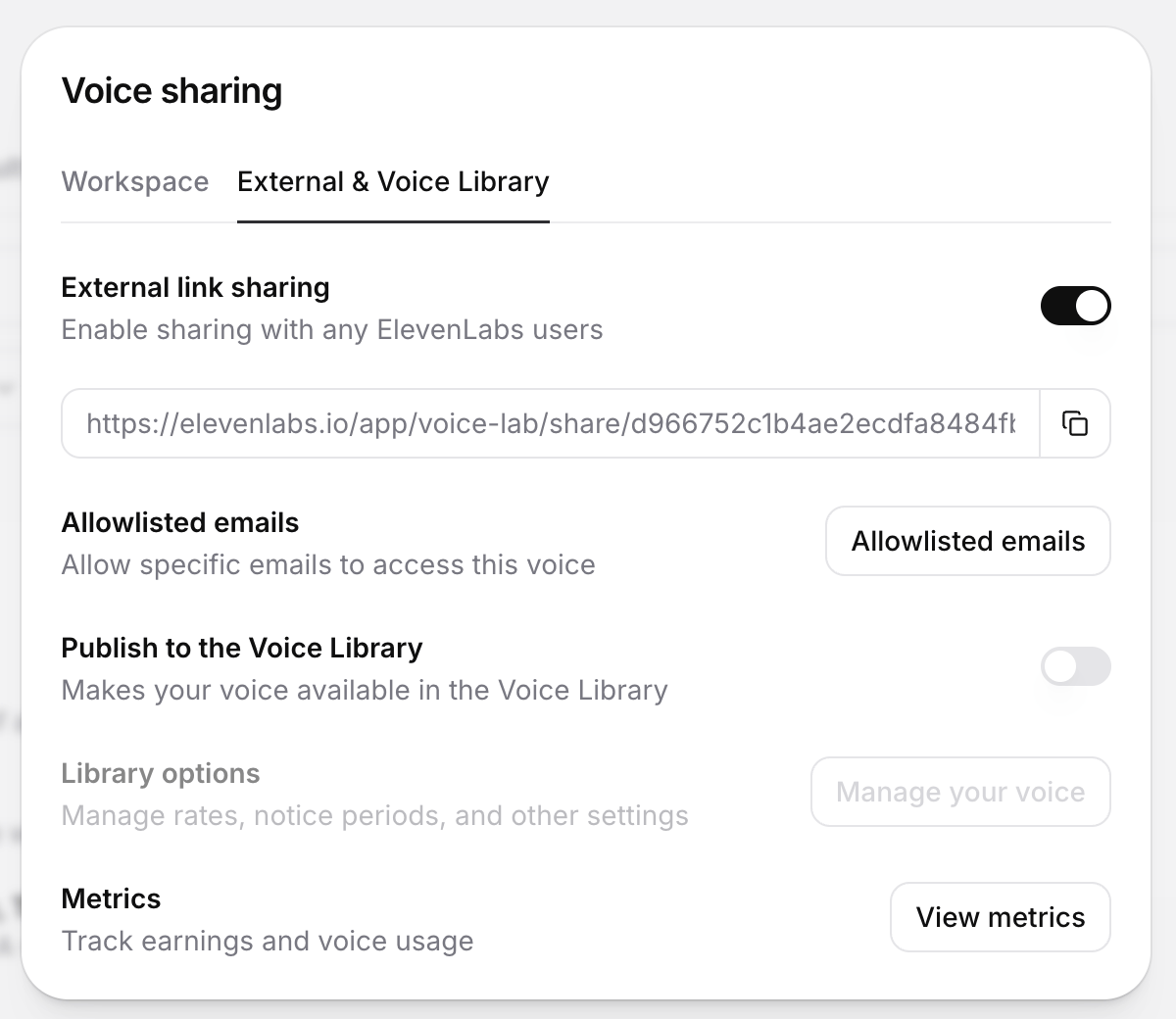
2
Send the share link to Anam Support
Email the share link to support@anam.ai. Anam will import the voice, add it to your account, and confirm when it is available.
Only the Professional Voice Clone voice type in ElevenLabs can be shared with external organisations.
Import Cartesia voices
Any localized or cloned Cartesia voice must be public before Anam can import it.1
Share the voice in Cartesia
Open the voice’s sharing settings and select Shared. Cartesia describes this setting as Anyone with the voice ID can use it.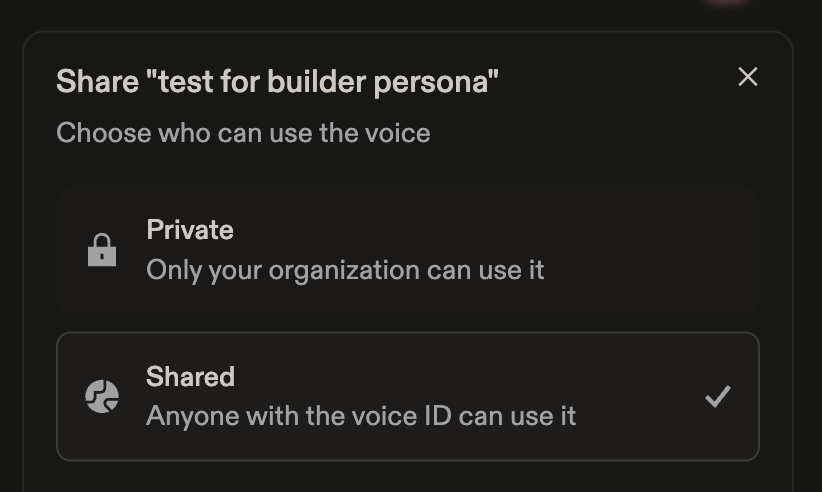
2
Import the voice in the Anam Lab
Copy the Cartesia Voice ID, then import the voice in the Anam Lab.
Create a voice with the API
Use create voice for programmatic cloning or provider import. The API supports audio sent as multipart form data, an uploaded audio reference, or a provider voice ID. For larger audio uploads, use create voice presigned upload, upload the audio to the returned URL, then pass the returnedaudioKey to create voice. Follow the API reference’s upload requirements rather than assuming the Lab file formats and limits apply to the API.
Next Steps
Avatar Gallery
Browse available avatars to pair with your voice
Persona Configuration
Learn more about configuring personas
Prompting Guide
Write effective system prompts for multilingual personas
Authentication
Understand session token creation