February 19, 2026
Adding the Anam widget to WordPress

Adding the Anam widget to WordPress
WordPress doesn't let you paste raw HTML into a page editor and have it execute scripts. You need a way to inject code into your site's header or footer. The easiest approach is the WPCode plugin, which gives you a UI for managing custom code snippets without touching theme files.
What you'll build
A WordPress site with an Anam avatar widget that appears on every page. Visitors click the widget to start a conversation with your AI persona.
Prerequisites
- An Anam account with a published persona (lab.anam.ai)
- A WordPress site where you can install plugins (WordPress.com Personal plan or higher, or any self-hosted WordPress site)
Grab your embed code
Open Anam Lab, go to your persona, and copy the widget embed snippet from the Widget tab:
<anam-agent agent-id="your-persona-id"></anam-agent>
<script src="https://unpkg.com/@anam-ai/agent-widget" async></script>
Install WPCode
From your WordPress dashboard, go to Plugins → Add Plugin and search for "wpcode".
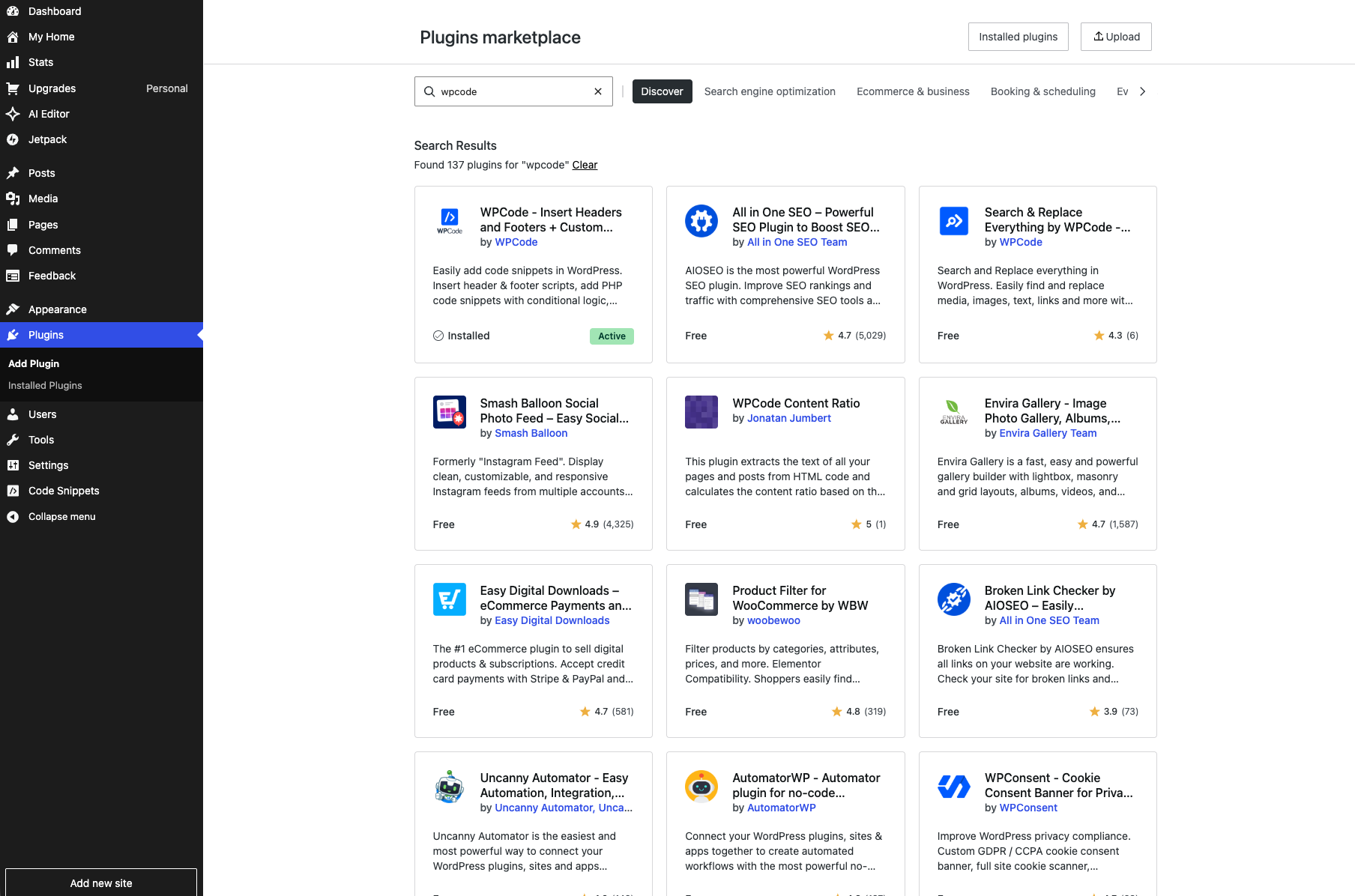
Click Install on WPCode – Insert Headers and Footers + Custom Code Snippets (it's the one by WPCode, typically the first result). Once installed, click Activate.
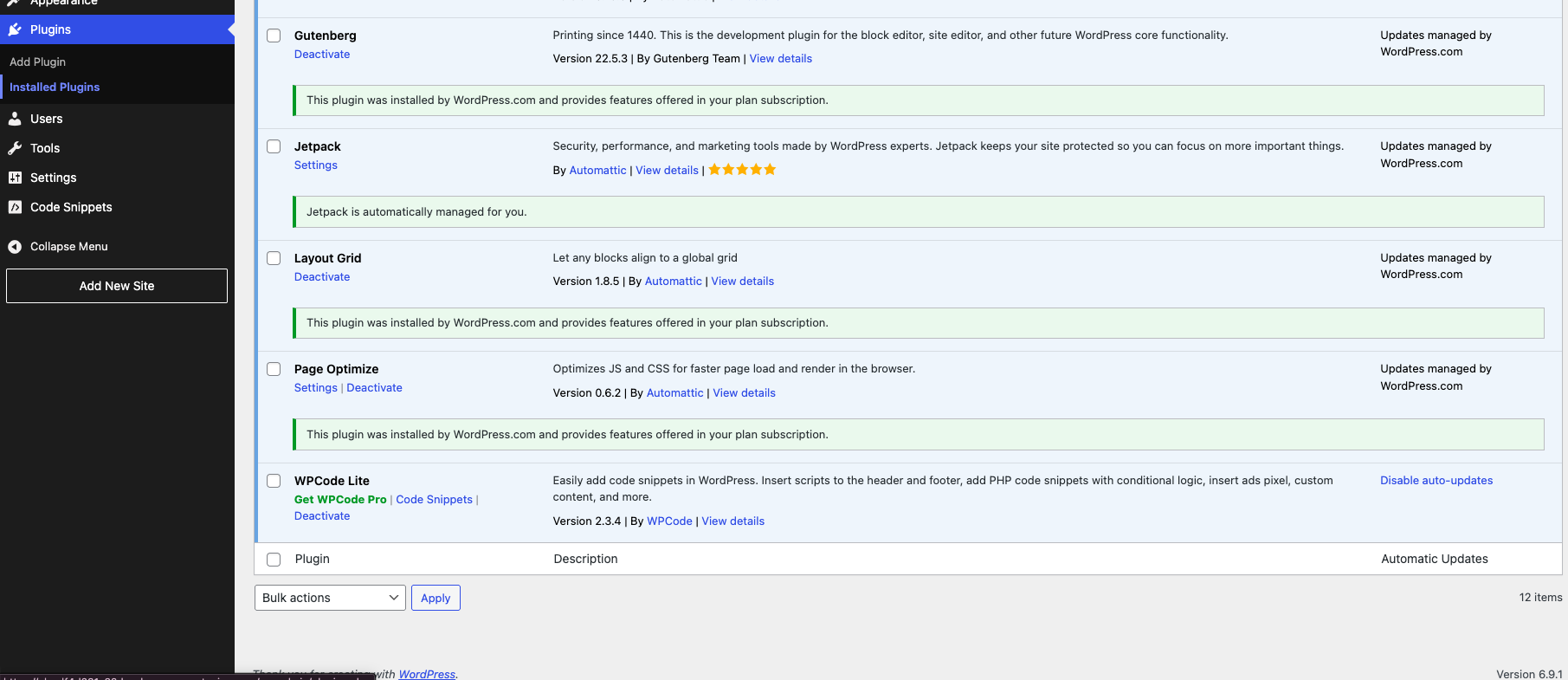
You should see "WPCode Lite" show up in your installed plugins list, and a new Code Snippets item appear in the left sidebar.
Create a custom snippet
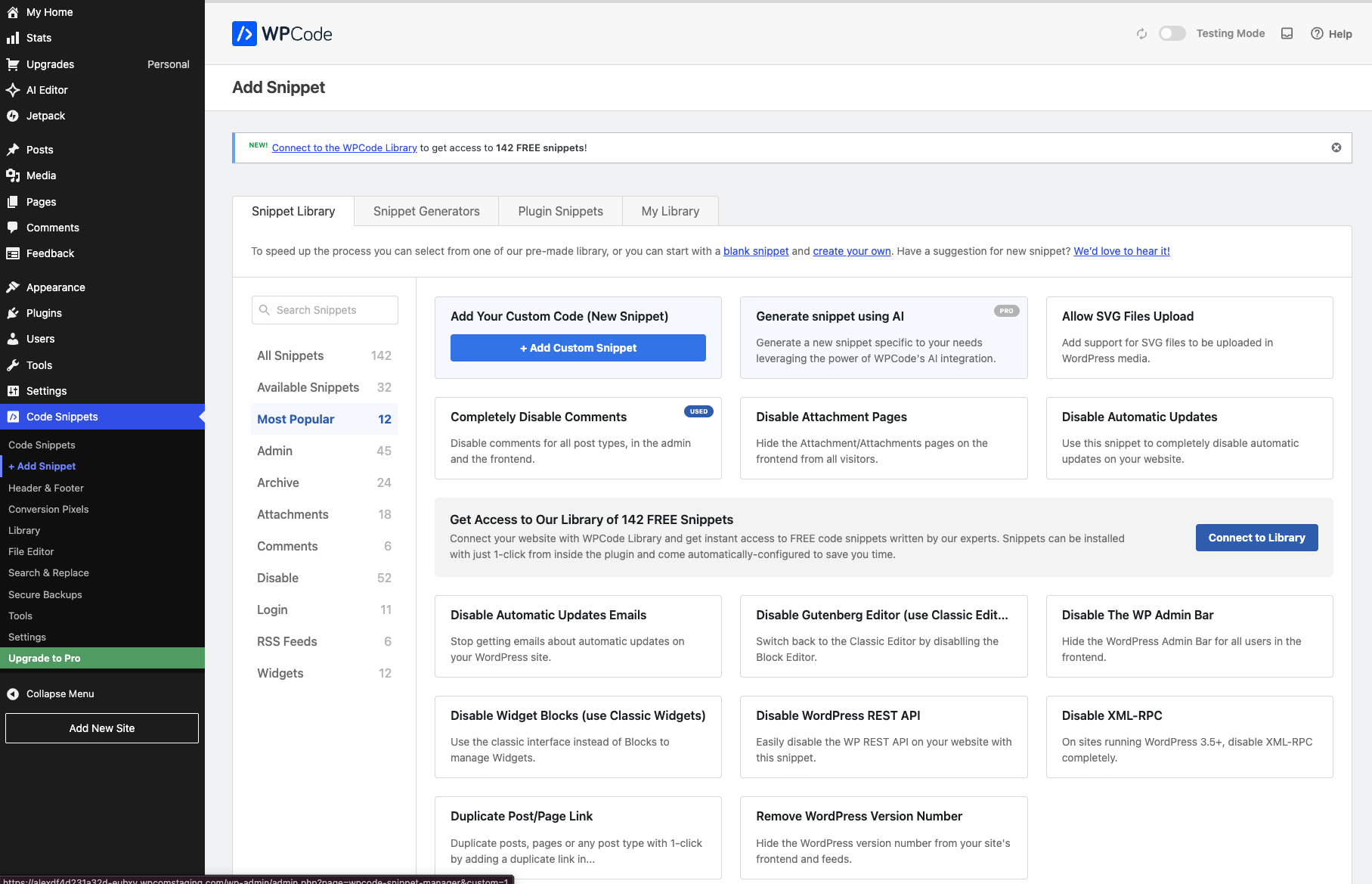
Go to Code Snippets → + Add Snippet. You'll see WPCode's snippet library with a bunch of pre-made options. We don't need any of those. Click Add Your Custom Code (New Snippet) at the top, then click the + Add Custom Snippet button.
Configure the snippet
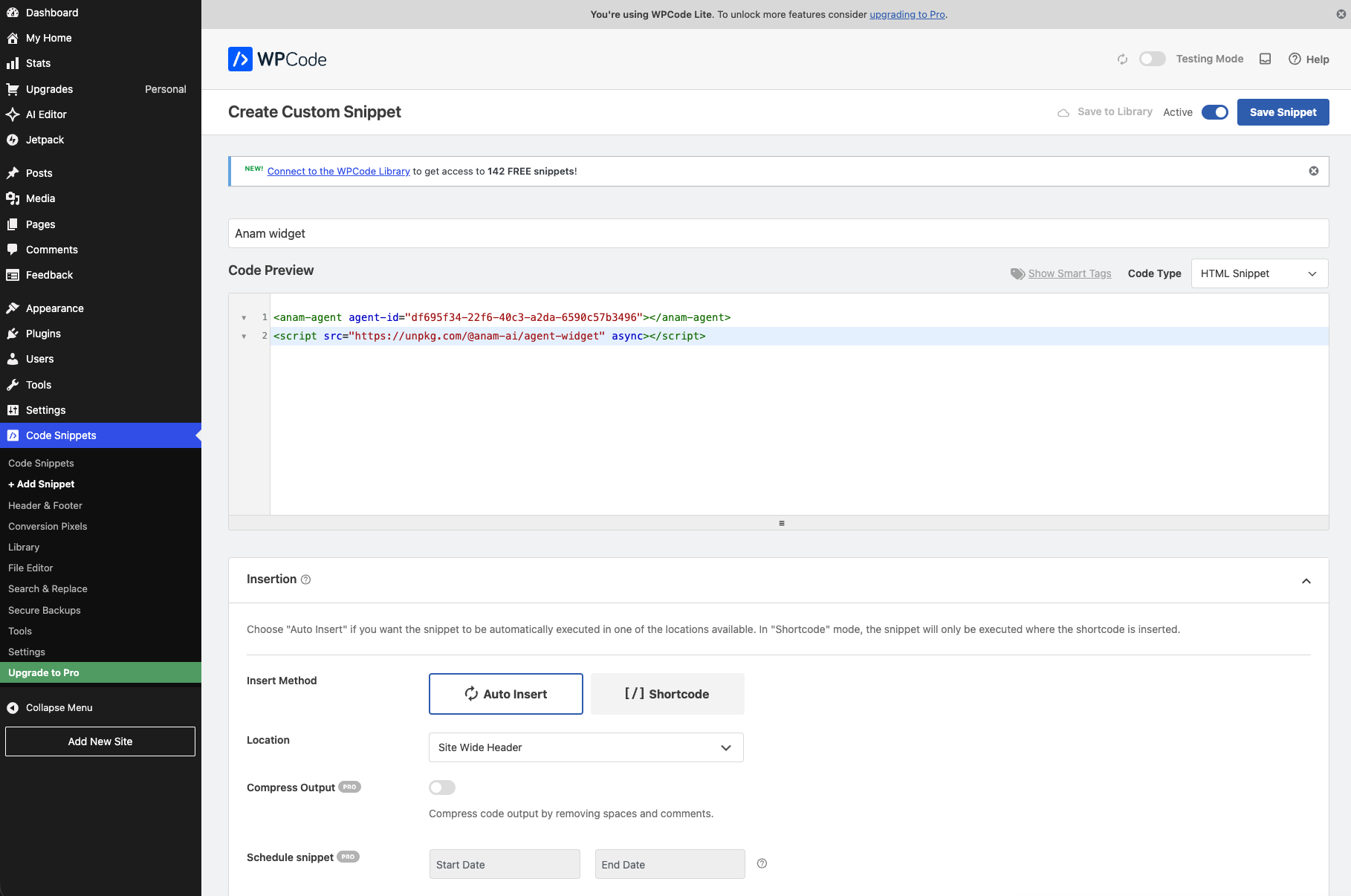
Give your snippet a title like "Anam widget" so you can find it later.
Set the Code Type dropdown to HTML Snippet (not JavaScript Snippet, since our code includes both HTML tags and a script tag).
Paste your embed code into the code editor:
<anam-agent agent-id="your-persona-id"></anam-agent>
<script src="https://unpkg.com/@anam-ai/agent-widget" async></script>
Under Insertion, keep the method set to Auto Insert and set the Location to Site Wide Header. This makes the snippet load on every page.
Flip the Active toggle in the top right to turn it on, then click Save Snippet.
Check your site
Open your WordPress site in a new tab. The widget should appear on the page, positioned however you configured it in Anam Lab.
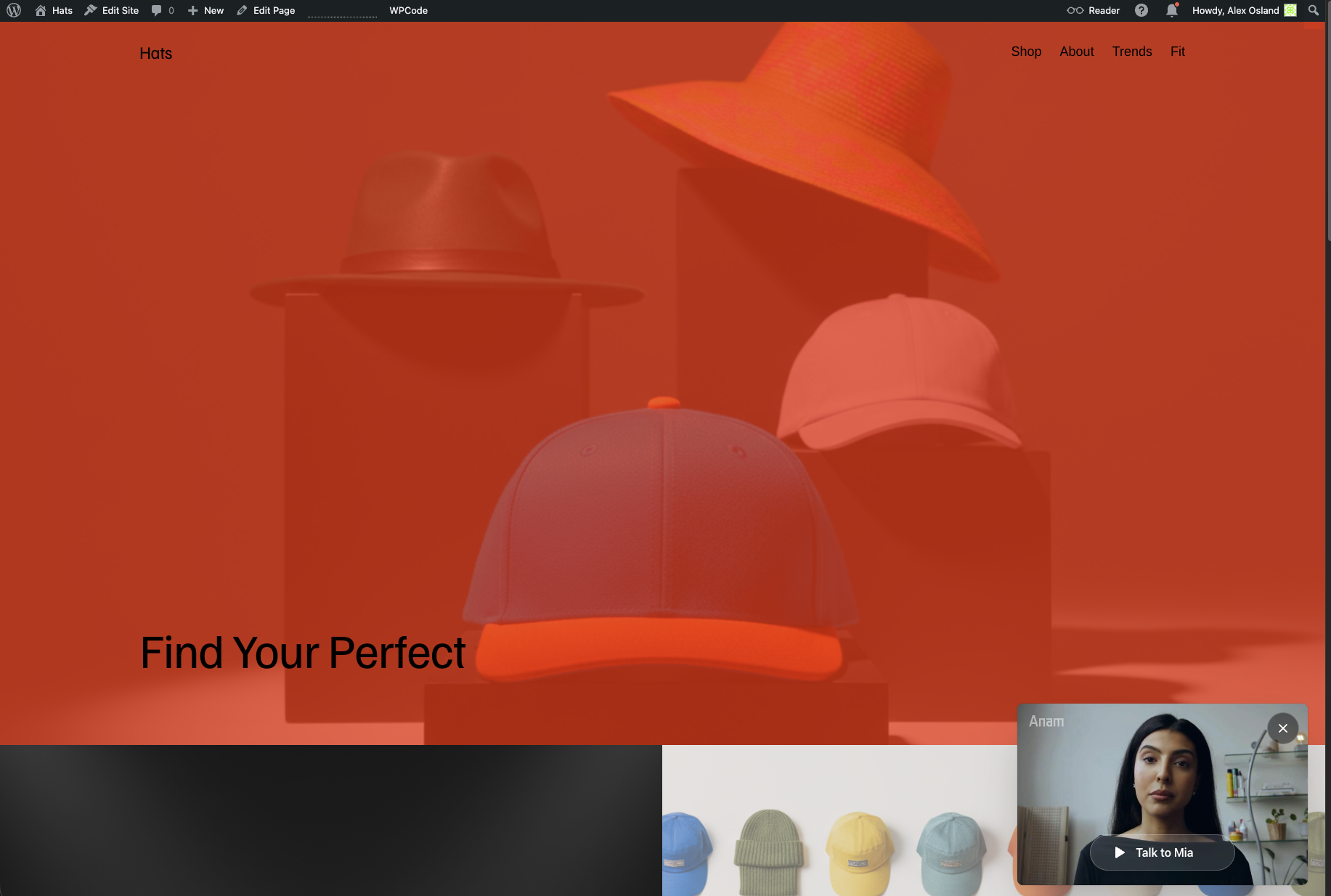
The widget will appear on every page across your site.
Customizing the widget
The easiest way to customize your widget is through the Anam Lab interface. Open your persona's Widget tab to change the layout, position, initial state, call-to-action text, and more. You don't need to re-copy the embed code after making changes. Just hit Publish in the Anam Lab and your live widget will update automatically.
If you need to override something for a specific page, you can also use HTML attributes directly. Go back to Code Snippets, find your "Anam widget" snippet, and edit it:
<anam-agent
  agent-id="your-persona-id"
  initial-state="minimized"
  call-to-action="Need help?"
></anam-agent>
<script src="https://unpkg.com/@anam-ai/agent-widget" async></script>
The full list of attributes is in the widget documentation.
Why WPCode instead of editing theme files?
You could paste the widget code directly into your theme's header.php or footer.php files, but that approach has downsides. Theme updates can overwrite your changes, and switching themes means you lose the widget. WPCode keeps your custom code separate from the theme, so it survives updates and theme changes. It also gives you a toggle to turn snippets on and off without deleting code, which is handy for testing.
Removing the widget
Go to Code Snippets, find your "Anam widget" snippet, and either toggle it to Inactive (keeps the code for later) or delete it entirely.