February 19, 2026
Adding the Anam widget to Shopify

Adding the Anam widget to Shopify
Shopify gives you access to your theme's source code, which means you can drop the Anam widget directly into your store's layout file. Once it's there, the avatar appears on every page of your store: product pages, collections, cart, everything.
What you'll build
A Shopify store with an Anam avatar widget. Your customers can click it to start a conversation with your AI persona.
Prerequisites
- An Anam account with a published persona (lab.anam.ai)
- A Shopify store (any plan, the theme code editor is available on all plans)
Grab your embed code
Open Anam Lab, go to your persona, and copy the widget embed snippet from the Widget tab:
<anam-agent agent-id="your-persona-id"></anam-agent>
<script src="https://unpkg.com/@anam-ai/agent-widget" async></script>
Open the theme code editor
In your Shopify admin, go to Online Store → Themes. Find your active theme and click Customize to open the theme editor. From there, click the three-dot menu (⋯) in the top-left corner and select Edit code.
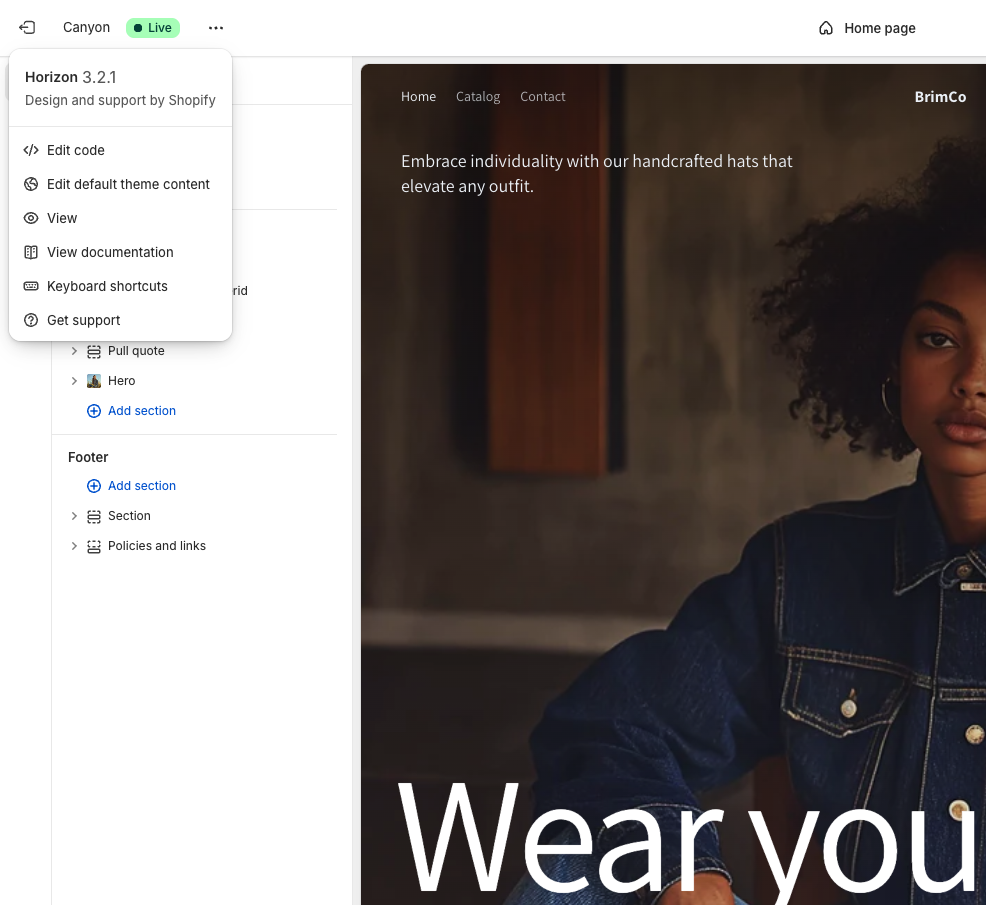
This opens Shopify's built-in code editor where you can modify your theme files directly.
Edit the layout file
In the file browser on the left, open the Layout folder and click on theme.liquid. This is the master layout file that wraps every page on your store.
Scroll down to find the opening <body> tag. Paste your widget snippet just after it, before any existing <script> tags. It should look something like this:
<body>
  <anam-agent agent-id="your-persona-id"></anam-agent>
  <script src="https://unpkg.com/@anam-ai/agent-widget" async></script>

  <!-- rest of your theme code -->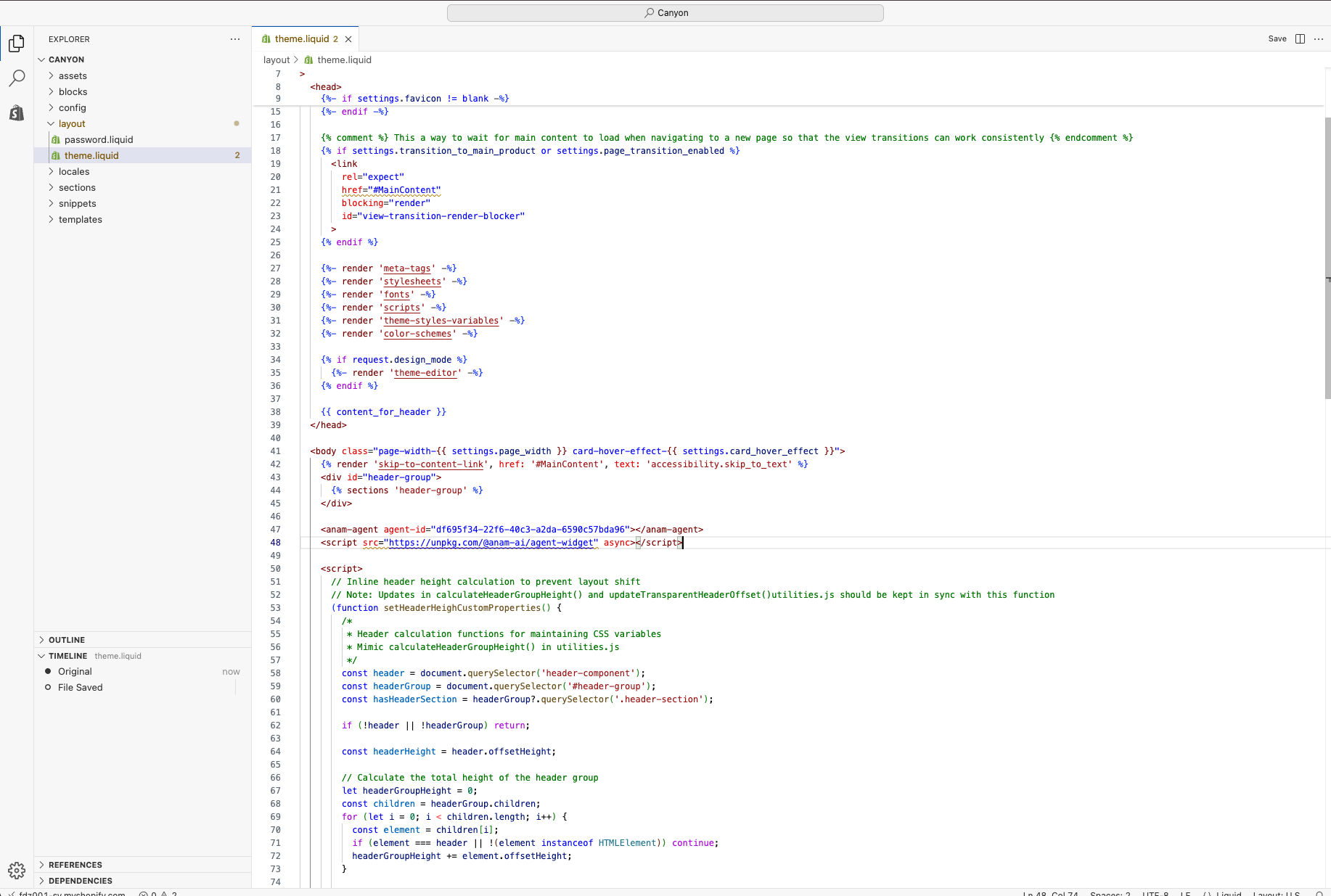
Press Ctrl+S (or Cmd+S on Mac) to save.
You can place the snippet anywhere inside the <body> tag. Putting it near the top just makes it easy to find later. The widget renders as a fixed-position overlay, so its placement in the HTML doesn't affect where it appears on screen.
Check your store
Navigate to your live storefront. The widget should appear on the page, positioned and styled however you configured it in Anam Lab.

Customizing the widget
The easiest way to customize the widget's appearance and behavior is through the Anam Lab interface. Open your persona's Widget tab and you can change the layout, position, initial state, call-to-action text, and more. You don't need to re-copy the embed code after making changes. Just hit Publish in the Anam Lab and your live widget will update automatically.
You can also override settings per-embed using HTML attributes directly. For example, if you want a specific Shopify page to use different settings than what's configured in Lab:
<anam-agent
  agent-id="your-persona-id"
  initial-state="minimized"
  call-to-action="Ask about our products"
></anam-agent>
Check the widget documentation for the full list of attributes.
Limiting the widget to specific pages
If you only want the widget on certain pages (like your homepage or a landing page), you can wrap it in a Liquid conditional:
{% if template == 'index' %}
  <anam-agent agent-id="your-persona-id"></anam-agent>
  <script src="https://unpkg.com/@anam-ai/agent-widget" async></script>
{% endif %}
Common template names: index (homepage), product (product pages), collection (collection pages), cart (cart page), page (custom pages).
Removing the widget
Go back to theme.liquid in the code editor and delete the two lines. Save the file.