April 17, 2026
Vision Agents + Anam dynamic background switching on Stream

This recipe starts from the standard Vision Agents + Anam setup, then adds one practical upgrade: dynamic background switching based on the conversation with the user.
The complete code is at examples/vision-agents-anam-dynamic-background.
What you'll build
You will build a Python agent that:
- Connects to Stream with
getstream.Edge() - Publishes an Anam avatar with
AnamAvatarPublisher - Replaces green-screen pixels with dynamic scene backgrounds
- Automatically switches to
kitchenfor recipe/cooking requests - Automatically switches to
studiofor weather requests - Uses a callback tool (
provide_cooking_instructions) for recipe responses - Includes the baseline weather tool pattern (
get_weather(location)) - Resets back to the neutral scene when the next user turn starts
Prerequisites
- Python 3.10+
- uv
- Stream API key and secret from getstream.io
- Anam API key and avatar ID from Anam Lab
- Gemini API key from Google AI Studio
- Deepgram API key from Deepgram
Baseline example in 60 seconds
The baseline pattern looks like this:
- Create an
Agentwithedge=getstream.Edge() - Add
processors=[AnamAvatarPublisher()] - Use your preferred
llm,stt, andtts - Join a Stream call with
agent.join(call)
agent = Agent(
    edge=getstream.Edge(),
    agent_user=User(name="Assistant", id="agent"),
    instructions="You're a friendly voice assistant.",
    processors=[AnamAvatarPublisher()],
    llm=gemini.LLM("gemini-3.1-flash-lite-preview"),
    tts=deepgram.TTS(),
    stt=deepgram.STT(eager_turn_detection=True),
)
If you want the full baseline walkthrough, start here:
If Stream calls are new to you, these docs are useful:
Project setup
git clone https://github.com/anam-org/anam-cookbook.git
cd anam-cookbook/examples/vision-agents-anam-dynamic-background
uv sync
cp .env.example .env
Fill .env:
STREAM_API_KEY=...
STREAM_API_SECRET=...
GEMINI_API_KEY=...
DEEPGRAM_API_KEY=...
ANAM_API_KEY=...
ANAM_AVATAR_ID=...
You can find your ANAM_API_KEY and ANAM_AVATAR_ID in the Anam Lab at lab.anam.ai.
The ANAM_AVATAR_ID can be found in the build page lab.anam.ai/build by hovering over an avatar and clicking the three dots menu.
Optional chroma-key tuning if you see green spill around edges:
ANAM_GREEN_THRESHOLD=88
ANAM_GREEN_BIAS=1.14
ANAM_GREEN_TOLERANCE=22
ANAM_GREEN_EDGE_EXPAND=1
Avatar constraints
To simplify the background replacement, we'll use a simple green screen setup, where the green screen pixels are replaced by the co-located pixels from the scene background. If you do not have an avatar with a green screen, you can use the Persona build page Anam Lab to create one.
On the top you'll see an option to either upload your own avatar (e.g. a headshot in front of a green screen or a generated image) or you use the text box to describe and generate a your new avatar. Make sure you specify to use a green screen background.
We found the following prompt works reliably:
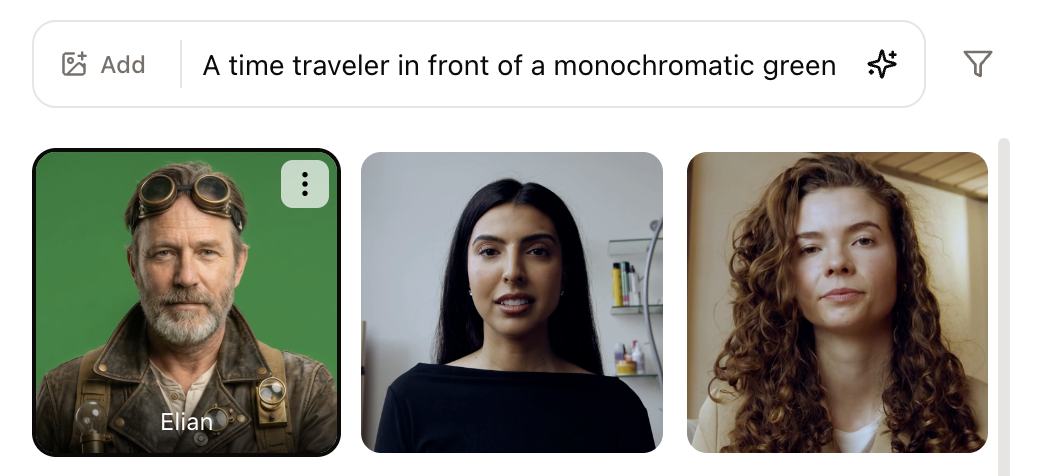
A time traveler in front of a monochromatic green screen that can be used to superimpose a background. The background should be pure green.
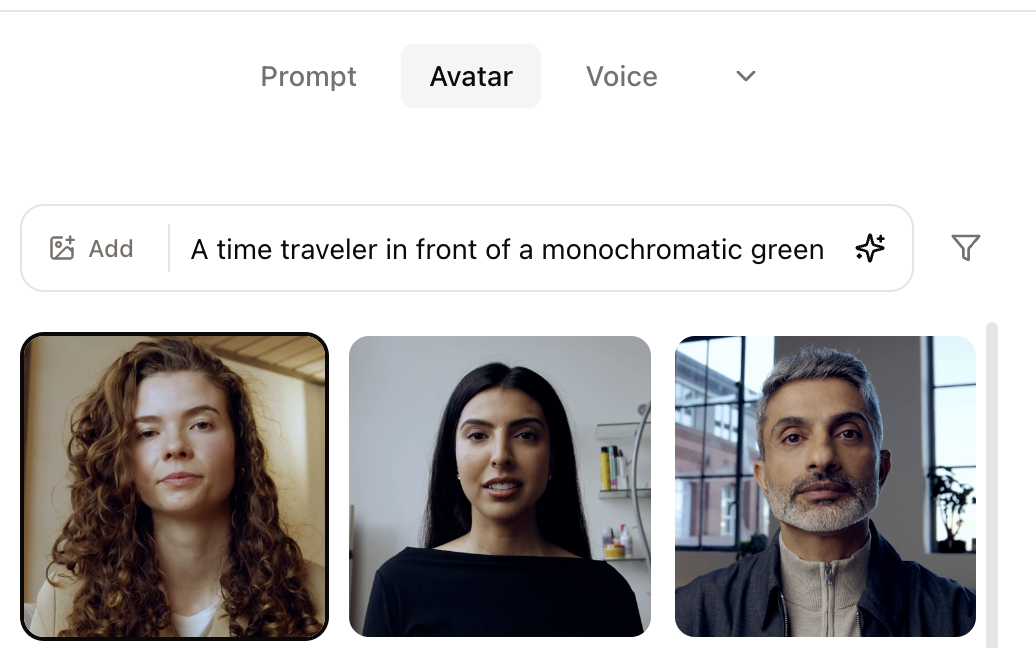
The generated avatar will populate the list and should look something like this:
This is a good point to test if the setup is working. If all goes well, a getstream.io webpage should open and lands you immediately in a Stream call. The avatar should join the call and you should be able to have a conversation with the avatar.
The avatar should show in a green background. Let's now change the backgrounds dynamically based on the context of the conversation.
Add dynamic backgrounds to the avatar
The AnamAvatarPublisher receives the synchronized audio & video frames from Anam's backend and forwards them to the end-user over the
getstream.Edge(). We'll intercept the video frames here and apply the background image to the frame.
The main change is a custom processor that subclasses AnamAvatarPublisher and overrides frame handling:
class SceneAwareAnamAvatarPublisher(AnamAvatarPublisher):
    async def _video_receiver(self) -> None:
        async for frame in self._session.video_frames():
            composited = await self._apply_background(frame)
            await self._sync.write_video(composited)
The composited frame (the frame with the background image applied) is now pushed into the video track.
Inside _apply_background, the flow is:
- Convert incoming frame to RGB
- Build a strict + tolerant near-green mask
- Replace masked pixels with the current scene image
- Write the composited frame back to the published video track
The _apply_background method is simple implementation and serves as an example of how custom post-processing can be applied.
It's not suggested as a production ready implementation, but it's a good starting point for customizing the avatar behavior.
Change the scene based on tool calls
Register two tools on the LLM:
@llm.register_function(description="Cooking instructions and kitchen scene.")
async def provide_cooking_instructions(dish: str) -> dict[str, object]:
    return {"dish": dish, "steps": _recipe_steps(dish)}

@llm.register_function(description="Get current weather for a location")
async def get_weather(location: str) -> dict[str, object]:
    return await get_weather_by_location(location)
The get_weather function uses the baseline Vision Agents weather helper. To spice things up (pun intended), this recipe (again pun intended) adds a tool call for providing cooking instructions.
So far, these tools are very generic, we can now add avatar.set_scene to the tool calls to change the scene before the assistant responds:
@llm.register_function(description="Cooking instructions and kitchen scene.")
async def provide_cooking_instructions(dish: str) -> dict[str, object]:
    await avatar.set_scene("kitchen")
    return {"dish": dish, "steps": _recipe_steps(dish)}

@llm.register_function(description="Get current weather for a location")
async def get_weather(location: str) -> dict[str, object]:
    await avatar.set_scene("studio")
    return await get_weather_by_location(location)
Prioritize automatic scene switching
To push this a bit further, we can also inspect the transcript to infer the scene and set the scene based on hints in the transcript.
We achieve this by subscribing to the STTTranscriptEvent on_transcript callback and inspecting the transcript text.
def _infer_scene_from_request(text: str) -> str | None:
    normalized = text.strip().lower()
    if any(k in normalized for k in ("cook", "recipe", "dish", "meal")):
        return "kitchen"
    if any(k in normalized for k in ("weather", "forecast", "temperature")):
        return "studio"
    return None

@agent.events.subscribe
async def on_transcript(event: STTTranscriptEvent) -> None:
    inferred = _infer_scene_from_request(event.text or "")
    if inferred is not None:
        await avatar.set_scene(inferred)
Revert to neutral with turn-taking callbacks
For this simple example, we'll revert to the neutral scene when the user starts the next turn, which we can get from the Vision Agents turn lifecycle events. Subscribe to TurnStartedEvent and reset the background when the user starts the next turn:
from vision_agents.core.turn_detection import TurnStartedEvent

@agent.events.subscribe
async def on_turn_started(event: TurnStartedEvent) -> None:
    if event.participant and event.participant.user_id != agent.agent_user.id:
        await avatar.reset_scene()
This keeps transitions predictable: hold the contextual scene during the assistant response, then return to neutral on the next user turn.
Running the app
uv run python main.py runJoin the Stream call URL printed in the terminal, then try:
- "Give me quick cooking instructions for pasta."
- "What's the weather in Amsterdam?"
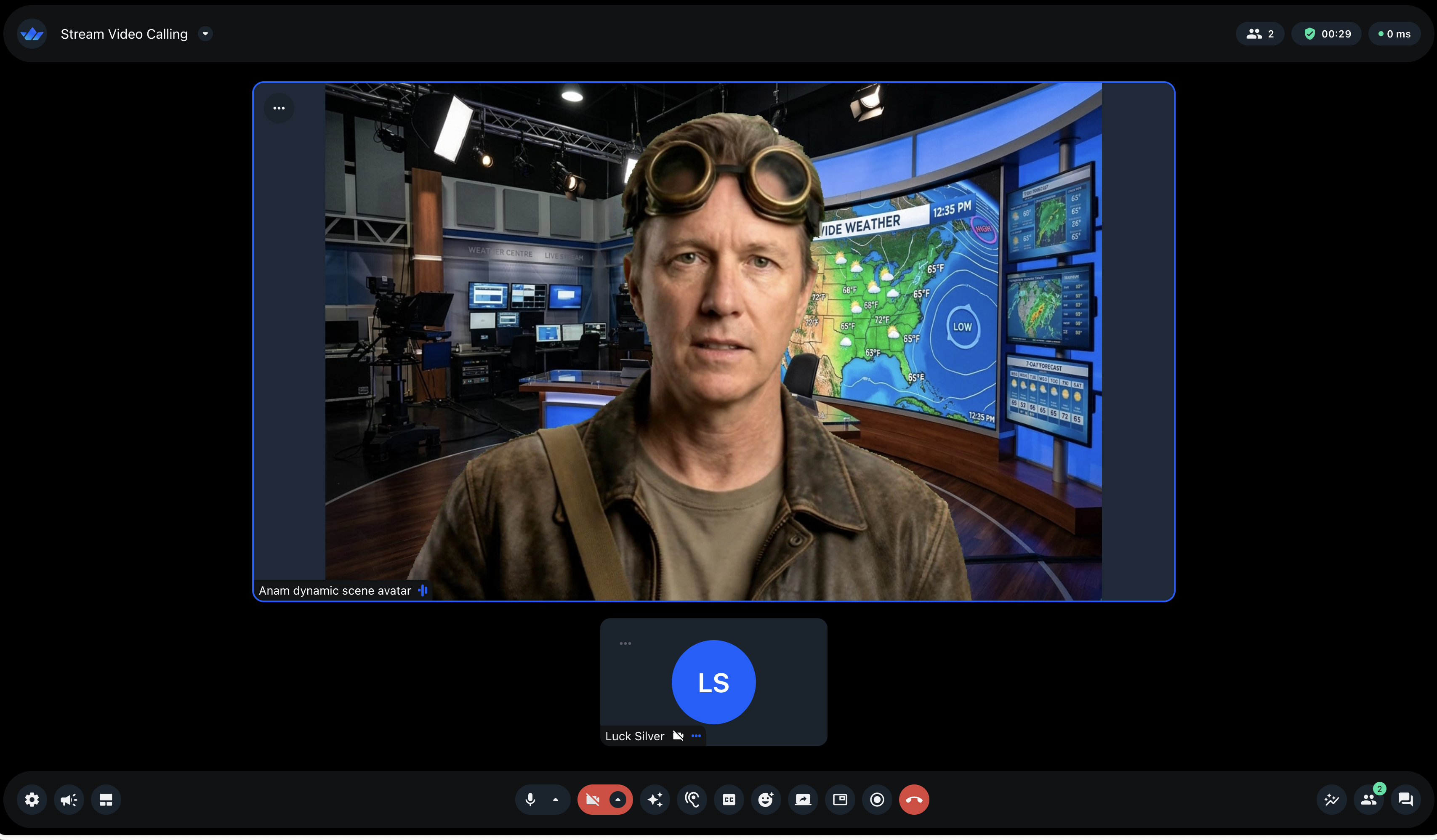
You'll see the avatar switch to the kitchen scene for cooking instructions and the studio scene for weather requests, similar to this:
Use cases
Any Vision Agents pipeline can now benefit by uplifting the voice agents to full fledged avatar agents. The recipe shows that tool calling and avatars work hand-in-hand. Furthermore, complex media processing operations are supported and allow for fine grain customizations to increase the engagement with your customer.
Docs: Vision Agents, Anam.