May 13, 2026
Live avatar stream with OpenAI Realtime 2, LiveKit, and Anam

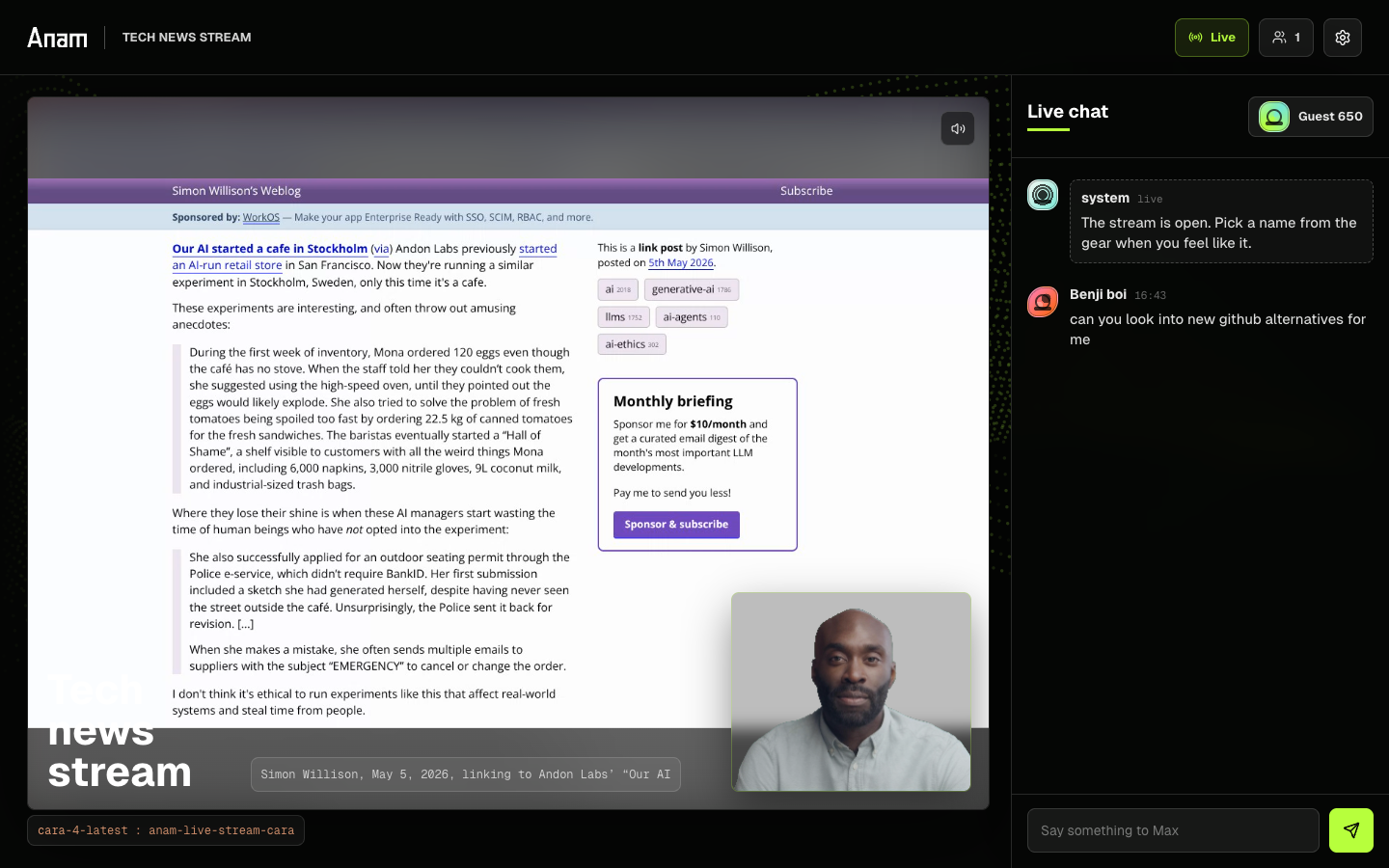
This recipe shows how to build a public livestream where OpenAI Realtime 2 drives one Anam Cara 4 avatar, viewers join from a URL, everyone shares the same LiveKit chat, and the avatar reacts to the room like a lightweight streamer.
The complete working example is in anam-org/anam-live-stream. Use this recipe to understand the architecture, then use the repo for the full UI, rate limiting, deploy scripts, and dynamic backdrop production code.
What you'll build
You will build two deployable pieces:
- A Next.js app that viewers open in the browser
- A LiveKit Cloud agent that joins the same room and drives the Anam avatar
LiveKit is the realtime transport. It carries avatar audio/video tracks from the agent side to every viewer, and it carries chat messages as reliable data messages. Anam renders the Cara 4 avatar into the room. OpenAI Realtime 2 gives the avatar a low-latency speaking voice.
Architecture
The core loop looks like this:
- A viewer opens the Vercel app.
- The app asks your server for a short-lived LiveKit viewer token.
- That token endpoint also dispatches the LiveKit agent into the room.
- The agent waits for at least one real viewer, then starts OpenAI Realtime 2.
- The agent starts an Anam avatar session with
avatarModel: "cara-4-latest". - Anam publishes the avatar video into the LiveKit room.
- Viewers send chat over a LiveKit data topic.
- The agent buffers recent chat and periodically asks the Realtime model to respond.
That separation matters. The public web app never sees your Anam or OpenAI API keys. The browser only receives a LiveKit token scoped to joining one room, subscribing to media, and publishing chat data.
Create the viewer token endpoint
The browser needs a LiveKit token, but the LiveKit API secret must stay on your server. Create an API route that sanitizes a viewer profile, mints a scoped token, and dispatches the named agent.
// src/app/api/livekit-token/route.ts
const identity = `viewer_${visitorId}_${crypto.randomUUID().slice(0, 8)}`;

const token = new AccessToken(apiKey, apiSecret, {
  identity,
  name: displayName,
  ttl: "2h",
  metadata: JSON.stringify({
    avatar,
    role: "viewer",
    visitorId,
  }),
});

token.addGrant({
  room: STREAM_ROOM_NAME,
  roomJoin: true,
  canPublish: false,
  canPublishData: true,
  canSubscribe: true,
});
The important grant is canPublishData: true. Viewers should be able to publish
chat messages, but they should not publish arbitrary audio or video tracks into
your public stream.
Next, dispatch the LiveKit agent. The example checks whether an agent is already running before creating another dispatch, so refreshes and multiple viewers do not create a pile of duplicate hosts.
const dispatch = new AgentDispatchClient(livekitUrl, apiKey, apiSecret);
const rooms = new RoomServiceClient(livekitUrl, apiKey, apiSecret);

const participants = await rooms.listParticipants(STREAM_ROOM_NAME);
const hasAgentParticipant = participants.some(
  (participant) => !participant.identity.startsWith("viewer_"),
);

if (!hasAgentParticipant) {
  await dispatch.createDispatch(STREAM_ROOM_NAME, STREAM_AGENT_NAME, {
    metadata: JSON.stringify({
      app: "anam-live-stream",
      avatarModel: "cara-4-latest",
      mode: "public-chat-stream",
    }),
  });
}
Return the token and LiveKit URL to the browser:
return Response.json({
  token: await token.toJwt(),
  url: livekitUrl,
  roomName: STREAM_ROOM_NAME,
  agentName: STREAM_AGENT_NAME,
  identity,
});
Connect viewers to LiveKit
On the client, create a LiveKit Room, ask your API route for a token, and
connect with autoSubscribe: true so the avatar track attaches as soon as Anam
publishes it.
const room = new Room({
  adaptiveStream: true,
  dynacast: true,
});

const response = await fetch("/api/livekit-token", {
  method: "POST",
  headers: { "Content-Type": "application/json" },
  body: JSON.stringify(profile),
});

const data = await response.json();
await room.connect(data.url, data.token, { autoSubscribe: true });
Subscribe to remote tracks and attach video tracks to your stage. In the complete example, the video is drawn through a canvas so the green-screen avatar can be composited over web pages and generated backgrounds.
room
  .on(RoomEvent.TrackSubscribed, (track, publication, participant) => {
    if (track.kind !== Track.Kind.Video) {
      return;
    }

    const element = track.attach();
    element.autoplay = true;
    element.playsInline = true;
    stageVideoContainer.append(element);
  })
  .on(RoomEvent.TrackUnsubscribed, (track) => {
    track.detach().forEach((element) => element.remove());
  });
Send chat as LiveKit data
Use a single reliable LiveKit topic for chat. Every viewer publishes to that topic, every viewer listens to that topic, and the agent listens to the same topic.
const CHAT_TOPIC = "anam-live-chat";

async function publishChatData(room: Room, message: ChatMessage) {
  await room.localParticipant.publishData(
    new TextEncoder().encode(JSON.stringify(message)),
    { reliable: true, topic: CHAT_TOPIC },
  );
}
When the browser receives a chat data message, merge it into local UI state. The message shape should be boring: an ID, author name, avatar, body, kind, and timestamp.
room.on(RoomEvent.DataReceived, (payload, participant, kind, topic) => {
  if (topic !== CHAT_TOPIC) {
    return;
  }

  const message = JSON.parse(new TextDecoder().decode(payload));
  appendMessage(message);
});
LiveKit data messages are realtime, but they are not a database. To make refreshes and different viewers see the same recent chat, persist a rolling buffer on your server.
// src/lib/chat-history-store.ts
function pruneMessages(messages: ChatMessage[]) {
  const oldestAllowed = Date.now() - CHAT_HISTORY_MAX_AGE_MS;

  return messages
    .filter((message) => message.createdAt >= oldestAllowed)
    .sort((a, b) => a.createdAt - b.createdAt)
    .slice(-CHAT_HISTORY_LIMIT);
}
The example stores that buffer in Vercel Blob when BLOB_READ_WRITE_TOKEN is
available, and falls back to process memory in local development.
Start the LiveKit agent
The LiveKit agent is a separate Node process deployed to LiveKit Cloud. Its job is to join the room, wait for a real viewer, start the AI voice session, start the Anam avatar session, and decide when to speak.
Waiting for a viewer is the main cost-control trick. If the token endpoint dispatches the agent but nobody actually joins, the agent exits instead of burning OpenAI, Anam, and LiveKit runtime.
const firstViewer = await waitForRealViewer(ctx, 25_000);

if (!firstViewer) {
  ctx.shutdown("No real viewers joined stream room");
  return;
}
Then create the Realtime voice session. The example uses cedar, but this is a
normal environment-backed setting.
const session = new voice.AgentSession({
  llm: new openai.realtime.RealtimeModel({
    model: process.env.OPENAI_REALTIME_MODEL || "gpt-realtime-2",
    voice: process.env.OPENAI_REALTIME_VOICE || "cedar",
    temperature: 0.85,
    modalities: ["audio", "text"],
  }),
});
Start the Anam Cara 4 avatar
The agent starts an Anam session that publishes the avatar into the same LiveKit room. The key idea is that the avatar receives the Realtime model's audio output as a LiveKit data stream and renders that speech as video.
const avatar = new CaraAvatarSession({
  personaConfig: {
    name: "Max",
    avatarId: process.env.ANAM_AVATAR_ID,
    avatarModel: "cara-4-latest",
  },
});

await avatar.start(session, ctx.room);
Inside CaraAvatarSession, mint a LiveKit token for the avatar participant and
pass it to Anam when creating the session token:
const { sessionToken } = await postJson({
  apiKey: process.env.ANAM_API_KEY,
  path: "/v1/auth/session-token",
  body: {
    personaConfig: {
      type: "ephemeral",
      name,
      avatarId,
      avatarModel: "cara-4-latest",
      llmId: "CUSTOMER_CLIENT_V1",
    },
    environment: {
      livekitUrl: process.env.LIVEKIT_URL,
      livekitToken,
    },
  },
});

await postJson({
  apiKey: sessionToken,
  path: "/v1/engine/session",
  body: {},
});
Finally route the Realtime session's audio output to the avatar participant:
agentSession.output.audio = new voice.DataStreamAudioOutput({
  room,
  destinationIdentity: "anam-avatar-host",
  waitRemoteTrack: TrackKind.KIND_VIDEO,
});
That is the bridge: OpenAI Realtime 2 decides what to say, LiveKit carries the audio stream, and Anam turns that audio into the live avatar video track.
Make the host respond periodically
A stream host should not answer every message like a support bot. Keep a short chat buffer, track which comments have already been handled, and speak on an interval when either new chat or a new screen topic arrives.
const chatBuffer: ChatMessage[] = [];
const pendingMessages: ChatMessage[] = [];
const handledCommentKeys = new Set<string>();

room.on(RoomEvent.DataReceived, (payload, participant, kind, topic) => {
  if (topic !== CHAT_TOPIC || !participant) {
    return;
  }

  const message = decodeChatMessage(payload);
  if (!message || handledCommentKeys.has(message.id)) {
    return;
  }

  chatBuffer.push(message);
  pendingMessages.push(message);
});
Then run the speaking loop. The complete example also checks whether the avatar is already talking, interrupts stale idle monologues when fresh chat arrives, and expires memory after a few minutes.
setInterval(async () => {
  if (isResponding || pendingMessages.length === 0) {
    return;
  }

  isResponding = true;
  const freshMessages = pendingMessages.splice(0);

  await session.generateReply({
    userInput: freshMessages
      .map((message) => `${message.authorName}: ${message.body}`)
      .join("\n"),
    instructions:
      "Respond like a livestream host. Pick one or two fresh comments, " +
      "do not answer every message, and keep the conversation moving.",
  }).waitForPlayout();

  isResponding = false;
}, 3_000);
This pattern is more important than the exact prompt. The host feels better when conversation state is explicit: fresh chat, recent chat, recent things said, and current screen context are separate buffers.
Add dynamic backdrops later
The dynamic mode in the example is deliberately a second layer. Start with the avatar and chat working first, then add a stage producer that changes what is on screen.
The producer can run independently from the speaking loop:
- read recent chat occasionally
- pick a source or topic
- search the web
- capture a page screenshot or short scrolling video
- publish a
stage.visualevent over LiveKit data - let the speaking agent react to the latest screen context
stageProducer.start({
  getRecentChat: () => chatBuffer.slice(-50),
  getRecentTalk: () => spokenTurns.slice(-10),
  publishVisual: (visual) =>
    room.localParticipant.publishData(
      new TextEncoder().encode(JSON.stringify(visual)),
      { reliable: true, topic: "anam-stage-visual" },
    ),
});
Keeping this as a separate producer avoids one common trap: making the speaking agent block while it waits for screenshots, image generation, or web search. The avatar can keep talking while the next visual is prepared in the background.
Minimal environment
The full repo includes .env.example files, but the conceptual split is simple:
- The Vercel app needs LiveKit credentials so it can mint viewer tokens and dispatch the agent.
- The LiveKit agent needs LiveKit credentials so it can join the room.
- The agent needs Anam and OpenAI credentials because it starts the avatar and Realtime sessions.
- Blob, Gemini, web search, and browser capture settings are optional extensions.
For the minimum version, configure:
LIVEKIT_URL=wss://your-project.livekit.cloud
LIVEKIT_API_KEY=your_livekit_api_key
LIVEKIT_API_SECRET=your_livekit_api_secret
LIVEKIT_ROOM_NAME=anam-live-stream
LIVEKIT_AGENT_NAME=anam-live-stream-cara
OPENAI_API_KEY=your_openai_api_key
OPENAI_REALTIME_MODEL=gpt-realtime-2
OPENAI_REALTIME_VOICE=cedar
ANAM_API_KEY=your_anam_api_key
ANAM_AVATAR_ID=your_anam_avatar_uuid
ANAM_AVATAR_MODEL=cara-4-latest
Run and deploy
Run the web app locally:
npm install
npm run dev
Run the agent locally in another terminal:
cd agent
npm install
npm run dev
Deploy the web app to Vercel and the agent to LiveKit Cloud:
vercel deploy --prod
lk agent deploy ./agent --secrets-file=./agent/.env.local --silent
When testing is done, delete the room or pause the deployed agent:
lk room delete anam-live-streamProduction checklist
Before sharing a public stream widely, add the boring safeguards:
- rate limiting on viewer-token creation
- rate limiting on chat reads and writes
- moderation or a blocklist for chat
- secret protection for screenshot and generated-background routes
- private-network blocking for page capture
- observability for agent crashes, room state, and model spend
- empty-room shutdown so the avatar does not run overnight
For YouTube Live, the quickest path is to open the Vercel page in OBS as a browser source and stream that output. A native LiveKit Egress to RTMP setup is possible too, but it needs separate cost and reliability planning.